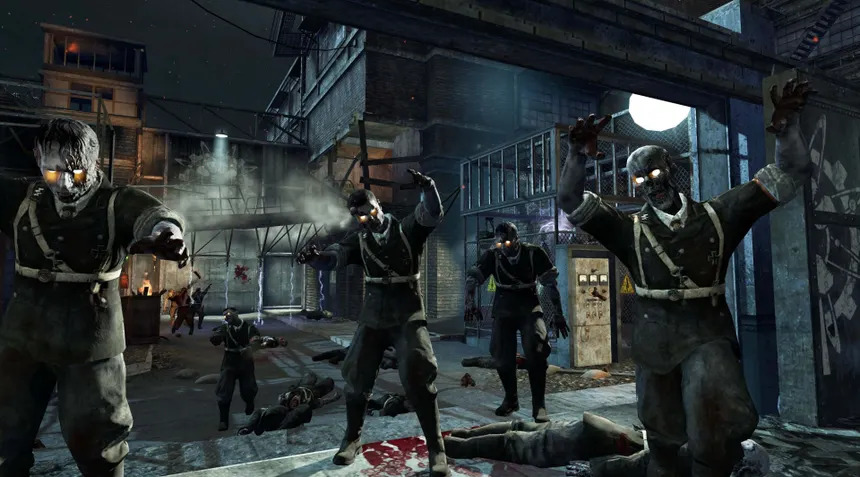
The map is still loading
Keep the map tab open while the loading percentage or remaining-time estimate changes. Game data can be large, and the first visit has more work to do than a repeat visit. Repeated reloads can restart that work.
If progress stops for several minutes, note the map and message, then try a normal reload once. Check your connection and available storage. If only one map fails, try another destination to distinguish a map-specific problem from a browser-wide one.
The game opens but frame rate is poor
- Check that hardware acceleration or graphics acceleration is enabled in your browser. Restart the browser if required.
- Close heavy tabs and other demanding applications. Keep the device connected to power if it reduces performance on battery.
- Try another current desktop browser. Compare the same map and normal mode so the comparison is useful.
- Reduce the game’s render or display settings if the build exposes them. Do not start in Hell mode while testing normal performance.
A black or blank screen
First decide whether the data loader is still active. A dark scene and an unfinished load are different. If there is an error message, preserve its wording before changing anything.
For a completed load with a blank canvas, update your browser, check graphics acceleration and try a standalone game tab. If the same destination fails in multiple browsers, the host or that map may need attention. A working guide page does not mean the external game is available.
Mouse capture or keyboard input fails
Use the game’s own start button, then click in the scene. Escape releases the pointer; click back into the scene to return. In a browser wrapper or embedded preview, pointer capture can behave differently from a normal desktop tab.
If a key scrolls a page, the scene probably has not captured input. Use a standalone browser game window and check the active control prompts. Avoid changing every key at once.
No sound
Browsers normally require a user interaction before audio starts. Click to start the game, check that the tab is not muted, then inspect Master Volume on the host’s options screen. Also check your system output device.
Play does not open a game window
Use the direct-link fallback displayed next to the launcher. A popup blocked by the browser does not mean the game map failed. On mobile, the browser may intentionally use a tab.
If you report a problem, include the map, browser, device and visible message. Do not send passwords or browser profile files. Contact us for a broken guide link; the game host controls runtime issues.
Find your next step
Keep the map open and allow its first download to finish. Avoid reloading while progress is changing.